Automating SEO tasks with WP-CLI
If your WordPress image ALT texts and file names are a mess, here’s a simple way to clean things up quickly using WP-CLI.
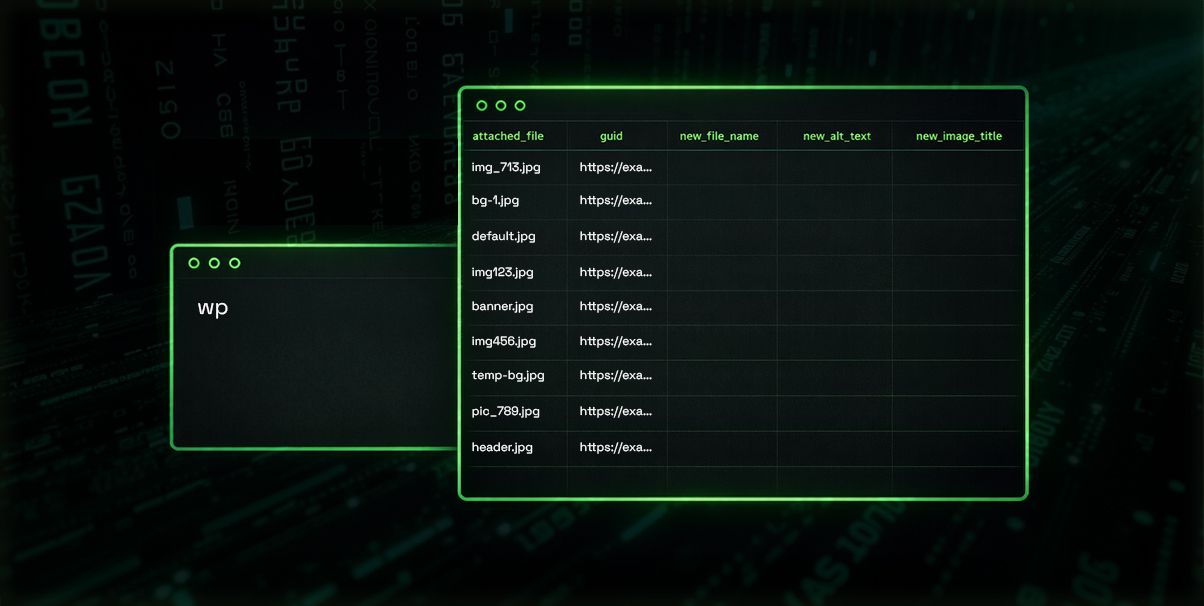
Usually, managing a WordPress site goes like this: you open a browser, log in, click the page you need, make a change, and hit "Update". That’s totally fine when you’re adding new pages, writing posts, or refreshing info once in a while.
But imagine you need to change the same kind of thing across hundreds or thousands of pages or media files. That clicking quickly turns into a massive time sink. And if you’re trying to make your site easier for search engines to understand, you’ll run into this kind of work a lot — updating a big batch of links, renaming images, or adding titles and descriptions across the site.
For example, let’s say you have 100 images and you want to add ALT text to each one. If opening the image, adding the text, and updating it takes (optimistically) about one minute per image, that’s 100 minutes - almost two hours of manual work. In real life, it usually takes longer.
That’s where the command line comes in. If you can automate the whole "open-edit-update” process, you save a ton of time. WordPress even has an official tool for this, named WP-CLI. With WP-CLI you can update plugins, create users, edit content, clean the database, and a lot more.
WP-CLI has loads of use cases, and it’s also really handy for SEO work - both when you’re doing an initial SEO audit and when you’re updating content. If you need to change a lot of things at once, it’s often easier to run a command that applies the updates automatically.
SEO includes lots of different tasks, and image optimization is one of them. Images shouldn’t slow the site down, and file names should actually make sense. An image called "IMG_6819.jpg" with no ALT text tells a search engine basically nothing about what it is. And if ALT text is missing, you’re also leaving accessibility unfinished for users who rely on screen readers.
But if the file name is something like "moller-omega-3-cod-liver-oil-250ml.jpg" and the ALT text is "Möller Omega 3 cod liver oil bottle, 250 ml", then the image becomes much clearer - both for search engines and for anyone using screen readers.
A small detail? Sure. But there are lots of these small details in SEO, and together they add up to something bigger.
How to quickly get an overview of which images are missing ALT text
Imagine a WordPress site with 3,000+ images in the Media Library, and you need to quickly find out how many of them are missing ALT text. Clicking through them one by one makes no sense. WP-CLI can handle it easily and output a CSV file you can open in Excel, in the format you need for reviewing and editing.
We’ll use the following command:
wp --quiet --skip-plugins --skip-themes eval '
$fh = fopen("php://output", "w");

fwrite($fh, "\xEF\xBB\xBF");

$delimiter = ",";

fputcsv($fh, [
  "attachment_id",
  "attachment_slug",
  "mime_type",
  "image_title",
  "alt_text",
  "caption",
  "description",
  "attached_file",
  "guid",
  "parent_id",
  "parent_type",
  "parent_title",
  "parent_slug",

  "new_file_name",
  "new_alt_text",
  "new_image_title"
], $delimiter);

$paged = 1;
$per_page = 500;

do {
  $q = new WP_Query([
    "post_type"      => "attachment",
    "post_mime_type" => "image",
    "post_status"    => "inherit",
    "posts_per_page" => $per_page,
    "paged"          => $paged,
    "fields"         => "ids",
    "orderby"        => "ID",
    "order"          => "ASC",
  ]);

  foreach ($q->posts as $id) {
    $a = get_post($id);
    if (!$a) continue;

    $alt      = (string) get_post_meta($id, "_wp_attachment_image_alt", true);
    $attached = (string) get_post_meta($id, "_wp_attached_file", true);

    $current_file_name = "";
    if ($attached !== "") {
      $current_file_name = basename($attached);
    } elseif (!empty($a->guid)) {
      $path = parse_url($a->guid, PHP_URL_PATH);
      $current_file_name = $path ? basename($path) : "";
    }

    $parent_id = (int) $a->post_parent;
    $p = $parent_id ? get_post($parent_id) : null;

    fputcsv($fh, [
      $id,
      (string) $a->post_name,
      (string) $a->post_mime_type,
      (string) $a->post_title,
      $alt,
      (string) $a->post_excerpt,
      (string) $a->post_content,
      $attached,
      (string) $a->guid,
      $parent_id,
      $p ? (string) $p->post_type : "",
      $p ? (string) $p->post_title : "",
      $p ? (string) $p->post_name  : "",

      $current_file_name,
      $alt,
      (string) $a->post_title
    ], $delimiter);
  }

  $paged++;
} while ($paged <= (int) $q->max_num_pages);
' > images-to-edit.csv 2>/dev/null
It’s a long chunk of code, but in simple terms it goes through your whole WordPress media library and creates a CSV table where you can later add new file names and ALT texts. If you want, you can even give that table to an AI tool and have it fill or update the values based on your instructions.
A bit more detail on what the command does
It does following:
- First we tell, don’t load plugins or themes (for the script to run faster)
- After that it starts writing the CSV file contents.
- Then it searches for images and adds the info we requested for each image.
We also add extra columns: "new_file_name", "new_alt_text", and "new_image_title". This is where we’ll put the new values without clicking around in the admin panel. In the end, you’ll have a big table called "images-to-edit.csv" that you can download from the server.
The generated table looks roughly like this:

And once you’ve filled in the new values, it looks something like this:

When you’ve made all the changes you want, save the edited table under a new name: "edited-images.csv", and upload it back to the server.
After the CSV is uploaded, you’ll also upload two helper files that apply the changes automatically. rename-media.php and search-replace-media-urls.sh.
Before doing anything, it’s smart to create a backup of both the database and the website - just in case something goes sideways.
You can back up the database with WP-CLI by running:
wp db exportAnd you can make a full site backup like this:
tar -czf media-rename-before-$(date +%F).tar.gz .Once you’ve created the backups, download them to your computer and delete them from the server. Backups contain access to your website data, and they shouldn’t be publicly accessible.
Now upload the helper files for updating images:
This code reads the updated CSV file, finds the old image, renames it, adds the ALT text, and tells WordPress the image now has a new name.
<?php

if ( ! defined( 'WP_CLI' ) ) {
    fwrite( STDERR, "This script must be run with WP-CLI.\n" );
    exit( 1 );
}

global $wpdb;

function cli_get_script_args() {
    $argv = $_SERVER['argv'] ?? [];
    $base = array_map( 'basename', $argv );
    $idx  = array_search( basename( __FILE__ ), $base, true );
    $args = ( $idx !== false ) ? array_slice( $argv, $idx + 1 ) : [];
    $args = array_values( array_filter( $args, fn($a) => $a !== '--' ) );
    return $args;
}

$args = cli_get_script_args();
if ( empty( $args ) ) {
    WP_CLI::error( "Usage: wp eval-file rename-media.php -- edited-images.csv [--dry-run] [--delete-old-thumbs]" );
}

$csv_path = $args[0];
$dry_run  = in_array( '--dry-run', $args, true );
$del_old  = in_array( '--delete-old-thumbs', $args, true );

if ( ! file_exists( $csv_path ) ) {
    WP_CLI::error( "CSV not found: {$csv_path}" );
}

$uploads = wp_upload_dir();
$basedir = rtrim( $uploads['basedir'], '/' );

$fh = fopen( $csv_path, 'r' );
if ( ! $fh ) {
    WP_CLI::error( "Failed to open CSV: {$csv_path}" );
}

$header = fgetcsv( $fh );
if ( ! $header ) {
    WP_CLI::error( "CSV appears empty." );
}

$header = array_map( 'trim', $header );
if ( isset( $header[0] ) ) {
    $header[0] = preg_replace( "/^\xEF\xBB\xBF/", "", $header[0] );
}

$required = [ 'attached_file', 'guid', 'new_file_name', 'new_alt_text', 'new_image_title' ];
foreach ( $required as $col ) {
    if ( ! in_array( $col, $header, true ) ) {
        WP_CLI::error( "Missing required column: {$col}" );
    }
}
$ix = array_flip( $header );

$processed = 0;
$renamed   = 0;
$missing   = 0;
$skipped   = 0;
$failed    = 0;

while ( ( $row = fgetcsv( $fh ) ) !== false ) {
    $processed++;

    $old_file  = trim( (string) ( $row[ $ix['attached_file'] ] ?? '' ) );
    $old_guid  = trim( (string) ( $row[ $ix['guid'] ] ?? '' ) );
    $new_file  = trim( (string) ( $row[ $ix['new_file_name'] ] ?? '' ) );
    $new_alt   = trim( (string) ( $row[ $ix['new_alt_text'] ] ?? '' ) );
    $new_title = trim( (string) ( $row[ $ix['new_image_title'] ] ?? '' ) );

    if ( $old_file === '' || $new_file === '' ) {
        WP_CLI::warning( "Row {$processed}: missing old/new file name, skipping." );
        $skipped++;
        continue;
    }

    $new_file = basename( $new_file );

    $att_id = null;

    if ( $old_guid !== '' ) {
        $att_id = $wpdb->get_var( $wpdb->prepare(
            "SELECT ID FROM {$wpdb->posts} WHERE post_type='attachment' AND guid=%s LIMIT 1",
            $old_guid
        ) );
    }

    if ( ! $att_id ) {
        $like = '%' . $wpdb->esc_like( '/' . $old_file );
        $att_id = $wpdb->get_var( $wpdb->prepare(
            "SELECT post_id FROM {$wpdb->postmeta} WHERE meta_key='_wp_attached_file' AND meta_value LIKE %s ORDER BY post_id DESC LIMIT 1",
            $like
        ) );
        if ( ! $att_id ) {
            $att_id = $wpdb->get_var( $wpdb->prepare(
                "SELECT post_id FROM {$wpdb->postmeta} WHERE meta_key='_wp_attached_file' AND meta_value=%s LIMIT 1",
                $old_file
            ) );
        }
    }

    if ( ! $att_id ) {
        WP_CLI::warning( "Not found: {$old_file}" . ( $old_guid ? " ({$old_guid})" : '' ) );
        $missing++;
        continue;
    }

    $old_rel = get_post_meta( $att_id, '_wp_attached_file', true );
    if ( ! $old_rel && $old_guid ) {
        $path = parse_url( $old_guid, PHP_URL_PATH );
        $old_rel = ltrim( (string) $path, '/' );
    }

    if ( ! $old_rel ) {
        WP_CLI::warning( "[{$att_id}] Unable to determine old file path for {$old_file}, skipping." );
        $skipped++;
        continue;
    }

    $dir_rel = dirname( $old_rel );
    if ( $dir_rel === '.' ) { $dir_rel = ''; }
    $new_rel = $dir_rel ? rtrim( $dir_rel, '/' ) . '/' . $new_file : $new_file;

    $old_full = $basedir . '/' . ltrim( $old_rel, '/' );
    $new_full = $basedir . '/' . ltrim( $new_rel, '/' );

    $using_abspath = false;
    if ( ! file_exists( $old_full ) ) {
        $alt_old = rtrim( ABSPATH, '/' ) . '/' . ltrim( $old_rel, '/' );
        if ( file_exists( $alt_old ) ) {
            $old_full = $alt_old;
            $new_full = rtrim( ABSPATH, '/' ) . '/' . ltrim( $new_rel, '/' );
            $using_abspath = true;
        }
    }

    if ( ! file_exists( $old_full ) ) {
        WP_CLI::warning( "[{$att_id}] File not found on disk: {$old_full}" );
        $failed++;
        continue;
    }

    $old_meta = wp_get_attachment_metadata( $att_id );
    $thumbs_to_delete = [];
    if ( $del_old && is_array( $old_meta ) && ! empty( $old_meta['sizes'] ) && is_array( $old_meta['sizes'] ) ) {
        $old_dir = dirname( $old_full );
        foreach ( $old_meta['sizes'] as $info ) {
            if ( ! empty( $info['file'] ) ) {
                $thumbs_to_delete[] = $old_dir . '/' . $info['file'];
            }
        }
    }

    WP_CLI::log( sprintf( "[%d] %s -> %s%s", $att_id, $old_rel, $new_rel, $dry_run ? " (dry-run)" : "" ) );

    if ( ! $dry_run ) {
        $new_dir = dirname( $new_full );
        if ( ! is_dir( $new_dir ) ) {
            wp_mkdir_p( $new_dir );
        }

        if ( file_exists( $new_full ) ) {
            WP_CLI::warning( "[{$att_id}] Target already exists, skipping rename: {$new_full}" );
            $skipped++;
            continue;
        }

        if ( ! @rename( $old_full, $new_full ) ) {
            WP_CLI::warning( "[{$att_id}] Rename failed: {$old_full}" );
            $failed++;
            continue;
        }

        if ( $del_old && ! empty( $thumbs_to_delete ) ) {
            foreach ( $thumbs_to_delete as $p ) {
                if ( is_file( $p ) ) { @unlink( $p ); }
            }
        }

        update_post_meta( $att_id, '_wp_attached_file', $new_rel );

        if ( $new_alt !== '' ) {
            update_post_meta( $att_id, '_wp_attachment_image_alt', $new_alt );
        }

        $update = [ 'ID' => $att_id ];

        if ( $new_title !== '' ) {
            $update['post_title'] = $new_title;
        }

        $slug_source = $new_title !== '' ? $new_title : pathinfo( $new_file, PATHINFO_FILENAME );
        $update['post_name'] = sanitize_title( $slug_source );

        if ( $old_guid ) {
            $guid_dir = rtrim( dirname( $old_guid ), '/' );
            $update['guid'] = $guid_dir . '/' . $new_file;
        }

        wp_update_post( $update );

        $mime = get_post_mime_type( $att_id );
        if ( is_string( $mime ) && strpos( $mime, 'image/' ) === 0 && $mime !== 'image/svg+xml' ) {
            $meta = wp_generate_attachment_metadata( $att_id, $new_full );
            if ( ! is_wp_error( $meta ) && ! empty( $meta ) ) {
                wp_update_attachment_metadata( $att_id, $meta );
            } else {
                WP_CLI::warning( "[{$att_id}] Metadata regeneration failed." );
            }
        }
    }

    $renamed++;
}

fclose( $fh );

WP_CLI::success( "Done. Processed={$processed}, renamed={$renamed}, missing={$missing}, skipped={$skipped}, failed={$failed}" );

WP_CLI::log( "" );
WP_CLI::log( "Next step: update hard-coded URLs in content/meta if any." );
And also:
This helper script makes sure the new image name gets replaced in places where the image URL or name might be written inside content.
#!/usr/bin/env bash
set -euo pipefail

CSV="${1:-edited-images.csv}"
DRYRUN=0

if [[ "${2:-}" == "--dry-run" ]]; then
  DRYRUN=1
fi

if ! command -v wp >/dev/null 2>&1; then
  echo "wp command not found in PATH"
  exit 1
fi

if [[ ! -f "$CSV" ]]; then
  echo "CSV not found: $CSV"
  exit 1
fi

php -r '
$csv = $argv[1];
$fh = fopen($csv, "r") or die("CSV open failed\n");
$h = fgetcsv($fh);
if (!$h) die("CSV appears empty\n");
$h = array_map("trim", $h);
if (isset($h[0])) $h[0] = preg_replace("/^\xEF\xBB\xBF/", "", $h[0]);
$ix = array_flip($h);
if (!isset($ix["guid"], $ix["new_file_name"])) die("CSV must contain columns: guid,new_file_name\n");
while (($r = fgetcsv($fh)) !== false) {
  $old = trim((string)($r[$ix["guid"]] ?? ""));
  $newf = trim((string)($r[$ix["new_file_name"]] ?? ""));
  if ($old === "" || $newf === "") continue;
  $newf = basename($newf);
  $new = preg_replace("~[^/]+$~", $newf, $old);
  echo $old . "\t" . $new . "\n";
}
' "$CSV" | while IFS=$'\t' read -r old_guid new_guid; do
  if [[ -z "$old_guid" || -z "$new_guid" ]]; then
    continue
  fi

  echo "Replacing: $old_guid  ->  $new_guid"

  if [[ $DRYRUN -eq 1 ]]; then
    wp search-replace "$old_guid" "$new_guid" --all-tables --precise --dry-run --report-changed-only
  else
    wp search-replace "$old_guid" "$new_guid" --all-tables --precise --report-changed-only
  fi
done
Once the files are on the server, you visit:
yourdomain.com/rename-media.php
That runs the image update code, and after a little while all your images should have the new names and descriptions based on the CSV input. In other words: you’ve cleaned up the entire media library pretty quickly - and by using WP-CLI, you did it way faster than manually editing everything through the WordPress admin UI.
Summary
This is just one example of how you can use WP-CLI to your advantage for SEO work. If you need to clean up hundreds of images, links, or bits of metadata in one go, WP-CLI helps remove a lot of the manual effort. Once you’ve done it once, you can use the same approach on your next websites too. And there’s no need to be afraid of the command line - a lot of things can be done way faster through it.
Further reading:
How Google recommends naming images.See here
W3C WAI guide to writing ALT text. See here
Learn more about WP-CLI on the official website. See here